Headless install of raspberry pi
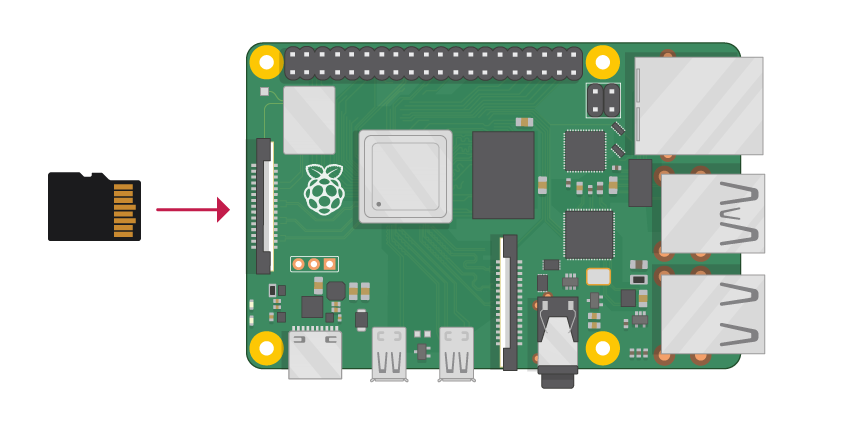
Table of Contents
Introduction
Setting up a Raspberry Pi without a monitor, keyboard, or network connection (headless install) is a common requirement for IoT projects, servers, and remote deployments. This guide walks you through preparing an SD card with Raspberry Pi OS and configuring SSH access and user credentials before the first boot.
By the end of this tutorial, you’ll have a bootable SD card ready to power up your Raspberry Pi with remote access enabled from the start.
Prerequisites
Before you begin, ensure you have:
- A Raspberry Pi (any model with SD card support)
- An SD card (minimum 8GB recommended)
- A computer with an SD card reader
- The Raspberry Pi OS image (download from the official Raspberry Pi website)
- Basic familiarity with terminal/command line operations
HowTo
Prepare the Disk
First, we’ll write the Raspberry Pi OS image to your SD card. This process will erase all existing data on the card.
Extract the image file:
| |
Identify your SD card:
| |
Look for your SD card in the output (typically /dev/disk2 or similar). Be careful to select the correct disk to avoid data loss.
Unmount the disk:
| |
Write the image to the SD card:
| |
This process may take several minutes. Wait for it to complete.
Eject the disk:
| |
Enable SSH Access
To enable SSH without a monitor, we need to add an empty ssh.txt file to the boot partition.
Remove and re-insert the SD card, then:
| |
This tells the Raspberry Pi to enable SSH on first boot.
Configure Default User
For security, Raspberry Pi OS no longer includes a default user. We’ll create one with a hashed password.
Create the user configuration file:
| |
Add your username and hashed password:
| |
Replace yourpasshere with your desired password. The format is username:hashed_password.
Eject the Disk
Once configuration is complete, safely eject the SD card:
| |
Your SD card is now ready! Insert it into your Raspberry Pi and power it on.
Next Steps
After booting your Raspberry Pi:
- Find your Pi’s IP address - Check your router’s DHCP client list or use a network scanner
- Connect via SSH - Use
ssh ri-pi@<ip-address>with the password you configured - Update your system - Run
sudo apt update && sudo apt upgrade - Configure additional settings - Use
sudo raspi-configfor Wi-Fi, localization, and other options
Command Reference
| |
Troubleshooting
Can’t find the Raspberry Pi on the network?
- Ensure the SD card was properly written and ejected
- Verify the
ssh.txtfile exists in the boot partition - Check that your router is assigning an IP address to the Pi
SSH connection refused?
- Wait a few minutes for the first boot to complete
- Verify the
ssh.txtfile was created correctly - Check that the userconf.txt has the correct format
Authentication failed?
- Double-check your password was hashed correctly
- Ensure the username in userconf.txt matches what you’re using to connect
- Try recreating the userconf.txt file